
Before you apply
What am I signing up for?
What am I signing up for?
What is the pay?
What is the pay?
How long is the commitment?
How long is the commitment?
What are the task requirements?
What are the task requirements?
- Use the device the task requires — a mobile device, or a Windows or Mac computer. Each job listing states which
- Provide any required specialized software yourself
- Use our recording software to capture and submit sessions — VidLog on the desktop, or the Visora mobile app for egocentric jobs
- Record simulated, day-to-day work — sessions must be continuous and unedited
- Avoid capturing confidential, proprietary, or sensitive data
- Idle or low-activity sessions are not paid
Getting started
I just signed up — what do I do first?
I just signed up — what do I do first?
Why can't I apply to a job?
Why can't I apply to a job?
I was approved for a job. Now what?
I was approved for a job. Now what?
Can I work on more than one job at a time?
Can I work on more than one job at a time?
Do I have to re-qualify for every job?
Do I have to re-qualify for every job?
Account and profile
Why is my account paused, or why can't I upload videos?
Why is my account paused, or why can't I upload videos?
Can I change the email address on my Visora account?
Can I change the email address on my Visora account?
Can I change my Visora account name?
Can I change my Visora account name?
I'm having identity verification issues. What do I do?
I'm having identity verification issues. What do I do?
Can friends or family members submit recordings under my account?
Can friends or family members submit recordings under my account?
Can I act as a vendor or contractor with a team and earn on commission?
Can I act as a vendor or contractor with a team and earn on commission?
I have both a Mac and a Windows PC. Can I submit to the same project from both?
I have both a Mac and a Windows PC. Can I submit to the same project from both?
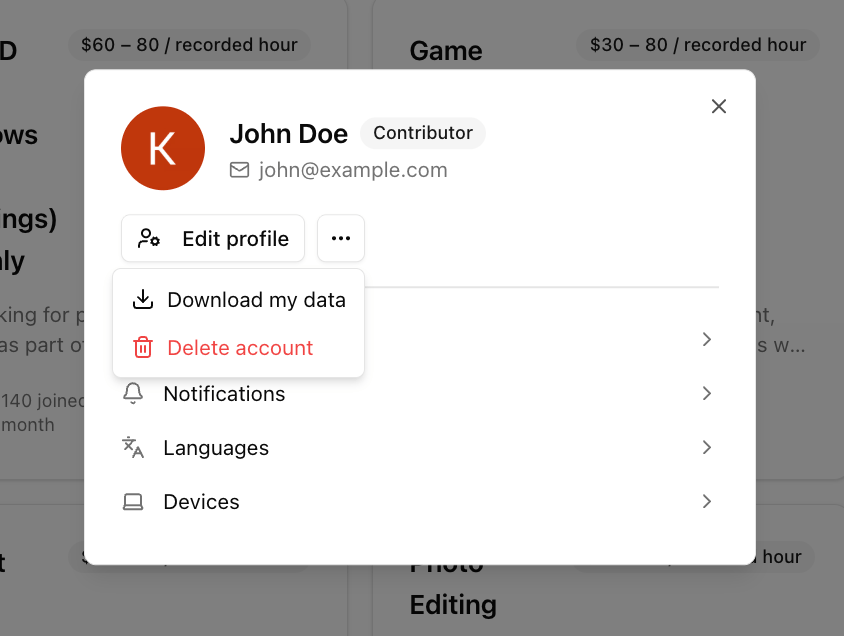
Can I delete my account?
Can I delete my account?
Payments, taxes, and subsidies
When and how do I get paid?
When and how do I get paid?
When exactly do payouts happen?
When exactly do payouts happen?
How do I make sure my account can receive payments?
How do I make sure my account can receive payments?
How do I fill out the W-8BEN form?
How do I fill out the W-8BEN form?
I've been asked to update my W-8BEN. How do I get a fresh form?
I've been asked to update my W-8BEN. How do I get a fresh form?
What do the pay ranges on job listings mean?
What do the pay ranges on job listings mean?
Do bonuses and milestones both have deadlines?
Do bonuses and milestones both have deadlines?
How are time-limited campaigns paid?
How are time-limited campaigns paid?
Applications and jobs
Can I fix a wrong video I uploaded during an application?
Can I fix a wrong video I uploaded during an application?
When will my application be reviewed?
When will my application be reviewed?
Where can I find sample videos for guidance?
Where can I find sample videos for guidance?
Can I withdraw and resubmit an assessment?
Can I withdraw and resubmit an assessment?
How does work get assigned?
How does work get assigned?
Recording requirements
Are there any requirements for recording on the computer?
Are there any requirements for recording on the computer?
What resolution and aspect ratio should recordings be?
What resolution and aspect ratio should recordings be?
Can I use overlays such as a Steam FPS counter while recording?
Can I use overlays such as a Steam FPS counter while recording?
Can I delete local copies of my recordings?
Can I delete local copies of my recordings?
My campaign submissions are paused but my account is active. Why?
My campaign submissions are paused but my account is active. Why?
VidLog app
How do I install and sign in to VidLog?
How do I install and sign in to VidLog?
.exe. On first launch, click Open browser to sign in and make sure the link opens in the same browser and Google account you used for Visora. If it opens elsewhere, copy the link into the correct browser or profile. Then scroll to the bottom of the terms and EULA to accept.How do VidLog updates work?
How do VidLog updates work?
My game audio isn't being captured. Why?
My game audio isn't being captured. Why?
Does VidLog record just the game or the whole screen?
Does VidLog record just the game or the whole screen?
Which encoder should I use in VidLog settings?
Which encoder should I use in VidLog settings?
I got "Upload Failed" with no rejection reason or suspension. What now?
I got "Upload Failed" with no rejection reason or suspension. What now?
How do I report a bug or submit error logs?
How do I report a bug or submit error logs?
Submissions and reviews
My submission was rejected. Can I try again?
My submission was rejected. Can I try again?
How long do reviews take?
How long do reviews take?
Why was my submission rejected?
Why was my submission rejected?
I applied for a job but no tasks appear in VidLog. Why?
I applied for a job but no tasks appear in VidLog. Why?