
Claim a task first
Before you can submit, you need to claim a task. Open Tasks from the sidebar, choose the project you’ve been cleared for, and click Claim on the task you want to work on. Claiming opts you into that specific piece of work — and it’s what opens the submission page for it.
Start a submission
Once a task is claimed, start a submission from that task — the app carries the task context for you. You can also resume a saved draft from My Submissions.If you open the submission screen without a job in context, we’ll send you back to pick which job you’re submitting for. Make sure you’ve been cleared for the job first.
Add your video
- For browser-based jobs, upload your video file (drag and drop or click). We read the duration automatically and show you a preview. You can re-upload to replace it.
- For screen-recording jobs, the upload box is replaced with a button to open VidLog. You record there, and your recording comes back to Visora as a draft you finish here.
- For egocentric jobs, the upload box is replaced with a button to open the mobile app. See Guidelines.
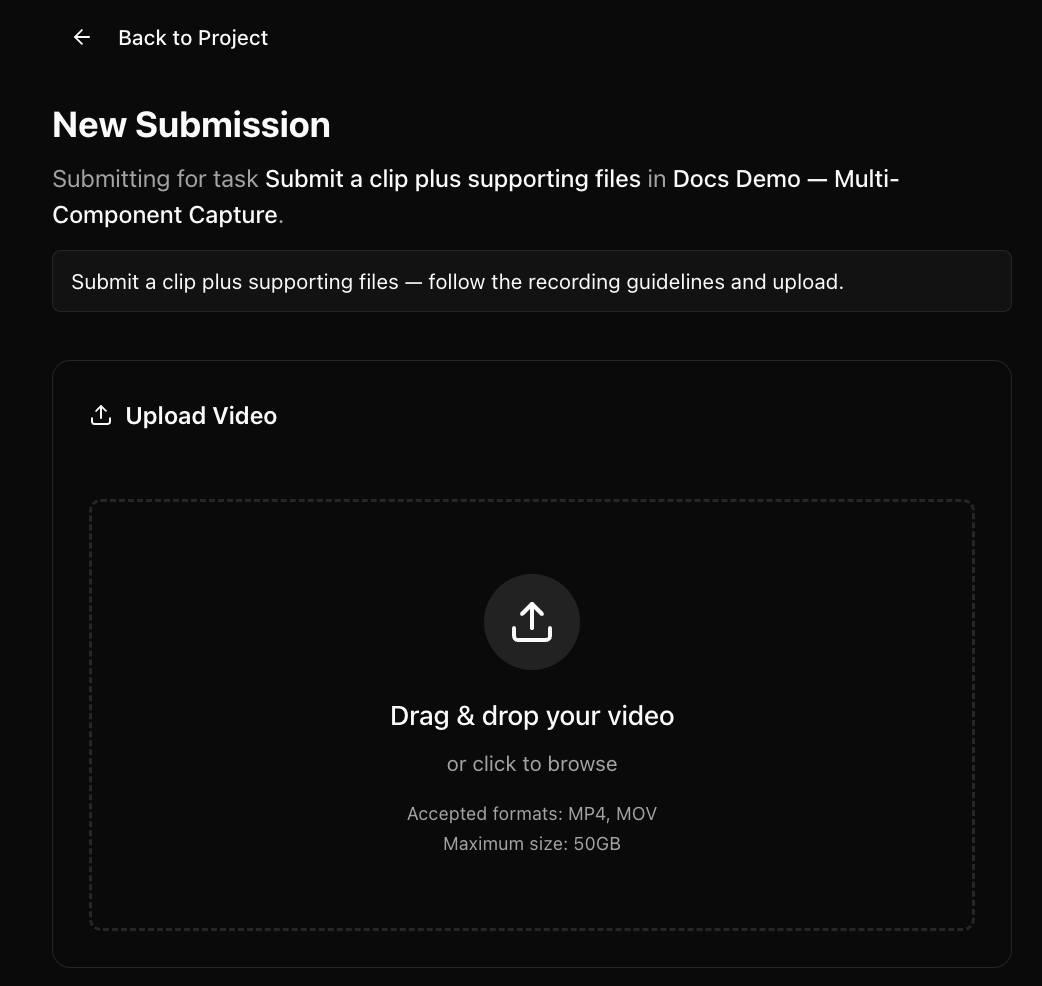
Create a submission
Add required components
Beyond the main video, a job may ask for additional components — each shown as its own slot. Depending on the job these can include:- Extra video files
- Files like images, documents, or
.ziparchives - A block of text
- A URL / link
- A short metadata form
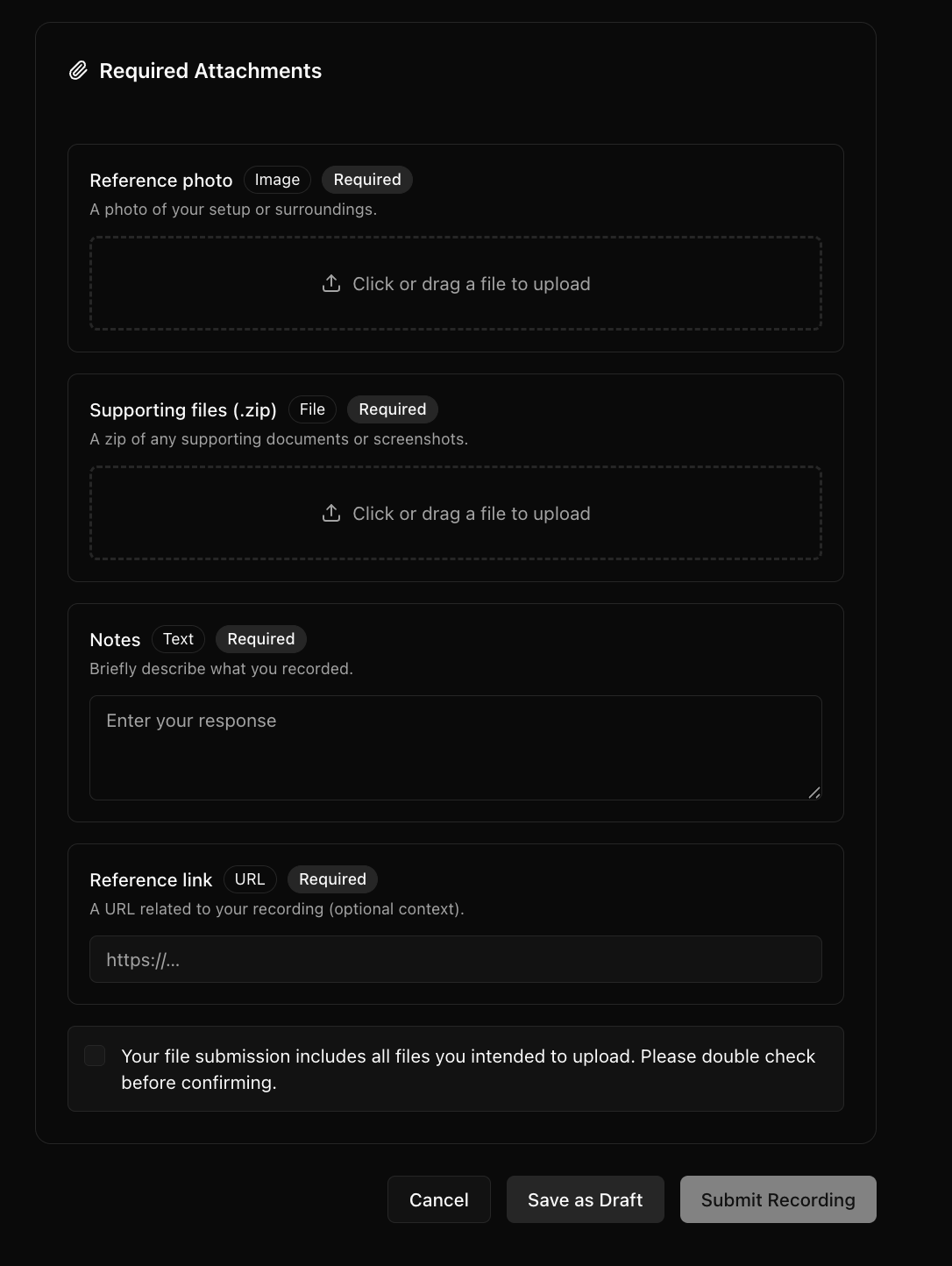
Attach required components